
V3 Game Wallet
Understand what appears in the historical wallet screens and where balance and transaction labels differ.
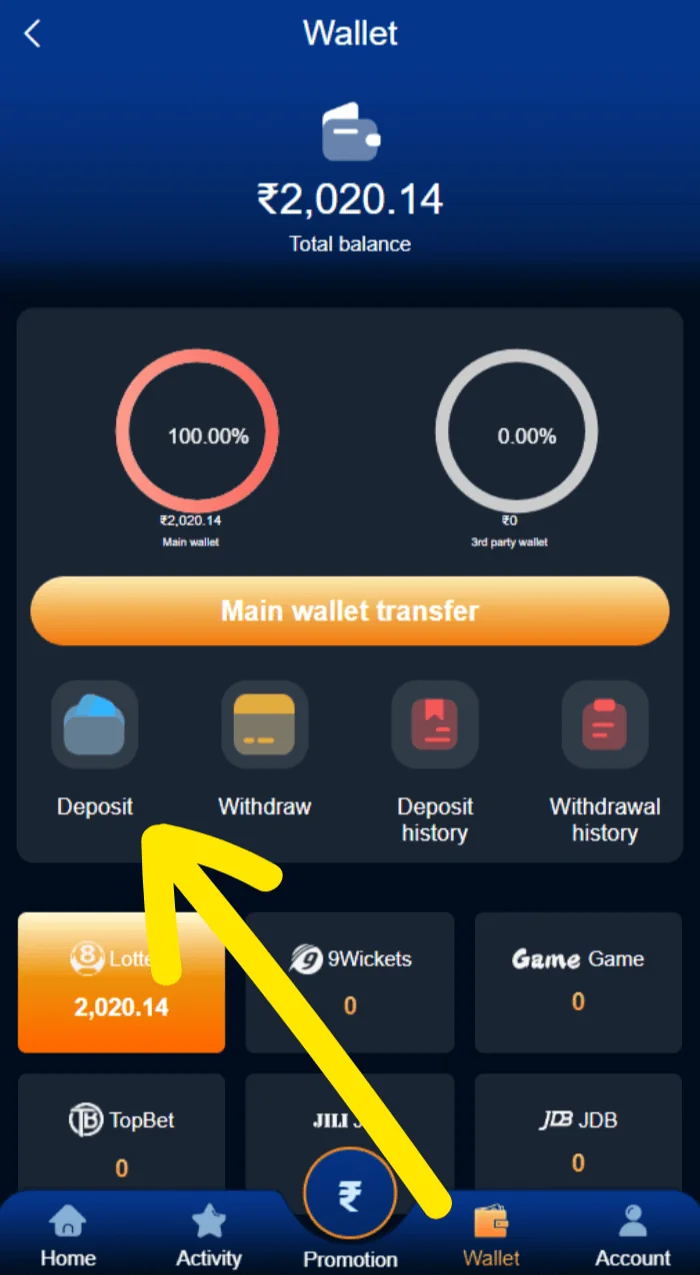
Wallet interface from a November 2024 screenshot. Example amounts are not current.
QUICK ACCESS
V3 Game Wallet – What to know
Clear information, relevant screenshots and practical checks for the topic you selected.
Reading the wallet overview
The archived V3 Game wallet screen contains a balance section near the top and quick action icons below it. A larger primary wallet transfer button separates the summary from account-related choices. The interface was designed to bring several different financial and account functions onto one compact mobile page.
Balance labels can be confusing because some systems distinguish an account balance from a transferable or withdrawable amount. A screenshot showing a number does not tell us whether it was real, test data, or tied to a particular account. This website does not use those example numbers to make current financial claims.
If you need to understand a present balance, consult the provider’s current terms and the real-time account screen rather than a historical illustration.
Deposit, withdrawal and transfer are different functions
A deposit-related view typically concerns adding money to an account; a withdrawal view concerns an outgoing request; and a transfer may move balances between internal sections. Similar icons can make them look interchangeable, but the fields and conditions can be very different.
Our reference collection includes dedicated Deposit and Withdraw screenshots. The deposit image shows a channel selector and amount fields, while the withdrawal image shows a payment-account field and password input. Those are descriptions of the old UI only, not instructions to make any particular transaction.
If a feature is absent from a current account, do not assume you can access it by following an old link or installing an alternative app.
Where history can help
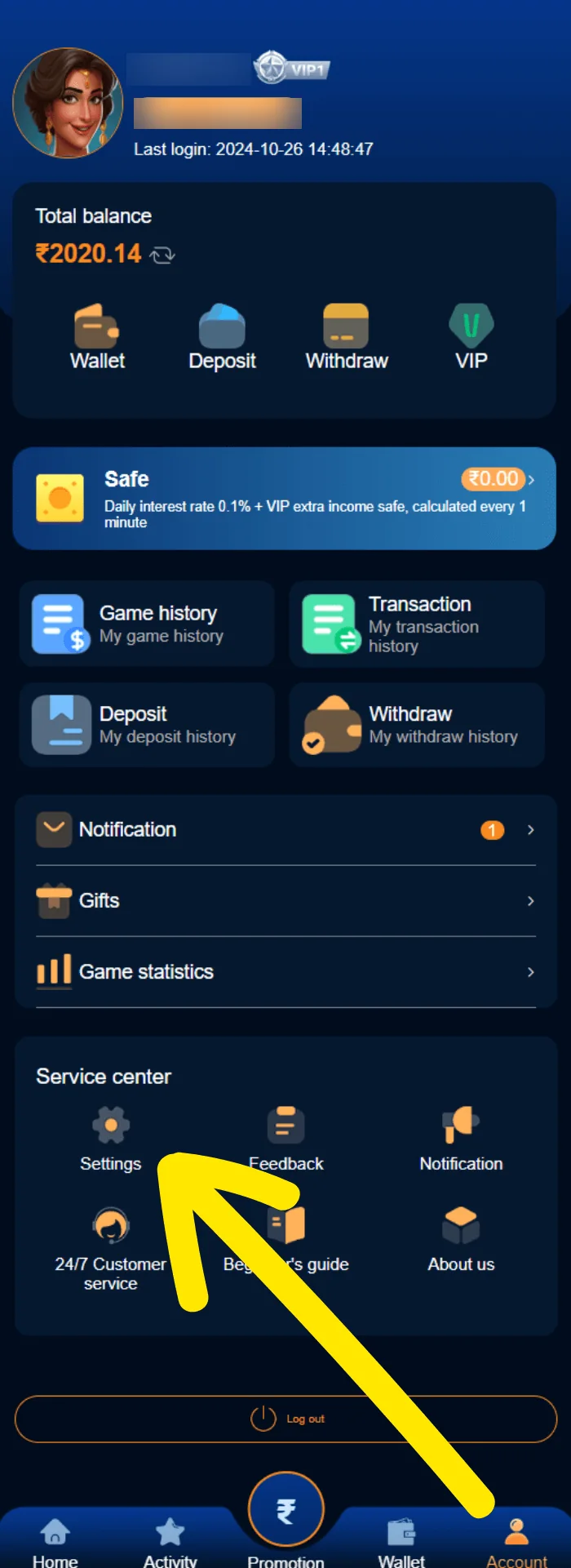
The account overview screenshot displays distinct links for game history, transaction history, deposit history and withdrawal history. These labels indicate different record types. A transaction history may include more than one type of activity, while deposit history should focus on incoming funds and withdrawal history on outgoing requests.
When comparing records, use timestamps, displayed statuses and reference numbers where available. A request marked pending should not be interpreted as completed. Equally, a visual notification icon does not prove money has been received or processed.
Only provide transaction references to verified support. Do not publish complete bank or wallet account identifiers in a public discussion.
Avoid balance and payment scams
Screenshots of large balances or bonuses can be created or edited, and they do not prove that funds are recoverable. Be skeptical of anyone who guarantees a payout, requests an additional payment to “unlock” a withdrawal or asks you to transfer funds to a private account outside a verified service.
Check any fee or condition against current published terms rather than accepting a message or image forwarded in a chat. If a transaction involves money-based gaming, applicable local law and eligibility may restrict access. This information website does not assess or approve individual transactions.
Keep a safe record
If you need to document a technical issue, note the date, time, visible status and exact error wording. Mask name, UID, full account number and other identifying details before sharing a screenshot. If the current service provides a legitimate reference ID, keep it in a private place.
Our account and payment examples were captured in November 2024. They cannot establish live processing times, limits, charges or available banks. Visit the Deposit and Withdrawal pages for context on their separate interface elements.
Which history view should you inspect?
The 2024 account screen lists game history, transaction history, deposit history and withdrawal history separately. A user examining a previous event should choose the label that matches the event. A transfer may appear in a broader transaction view even when it is not a deposit from an external payment service.
Write down the time and the displayed status if you need to compare two records. A visual difference between two balances can arise from pending actions, transfers or timing differences. Without current account data, a screenshot cannot explain the cause.
This website presents the old labels as orientation only. It cannot fetch private records or verify balances.
Protect wallet screenshots when sharing them
An account overview may contain a unique identifier, account name, balance and references to connected payments. Even if the user name seems unimportant, combining several details can make an account easier to identify. Crop screenshots to show the relevant error and blur everything not needed for the issue.
Our sample account screenshot has sensitive regions obscured. The wallet illustrations remain sufficient to understand navigation controls while avoiding unnecessary exposure of identifying values.
Use a verified support route for any investigation. Do not share complete account credentials or wallet details in public social comments.
How old balances differ from current information
Numbers printed in a dated screenshot reflect only what was shown at that moment. They are not evidence of a general reward, typical balance or likely outcome. Some old accounts may also have test values, promotional balances or migrated records that are not comparable to current accounts.
Do not rely on historical amounts when making a financial decision. Check the actual current provider, the rules for the specific account and local restrictions. If the information is unclear, the safest option is not to proceed.
For deposit and withdrawal field descriptions, the two separate pages contain the screenshots aligned with those tasks.
Using the screenshot arrows correctly
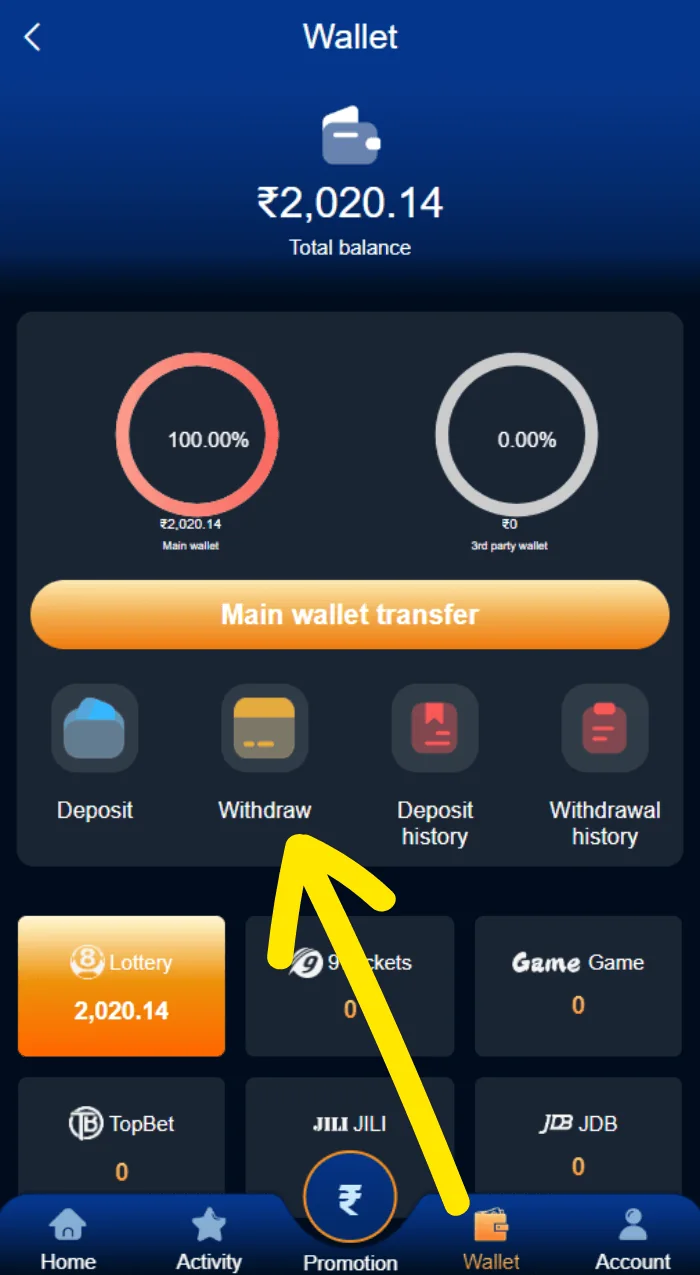
The original wallet image includes a yellow arrow pointing at a particular shortcut. A second, nearly identical image highlights a different wallet action. We retain each only in a context that matches the highlighted control; showing either beside registration or an unrelated game tile would be misleading.
Other small icons on the 2024 wallet capture lead to history or account-level features. The screenshots help recognize those areas but do not prove that the same actions are currently available or that a particular financial outcome will occur.
If you cannot find a label in a current product, look for updated documentation. An old screenshot cannot establish a workaround.
Account balances versus a processed transaction
A balance can reflect an account value at a given moment, while a transaction record describes an event. These values may not be synchronized in real time. A pending action, an internal transfer or a correction could explain why they differ, but without legitimate access to current records no cause can be confirmed.
The safer approach when reviewing a discrepancy is to compare the displayed timestamps and history category, then report the precise issue to verified support. A promotional image or a message from a stranger should not replace a transaction record.
Our 2024 examples use historical screenshots and do not represent a user’s current funds or eligibility.
Historical records are not current offers
Old wallet screens sometimes show promotional elements alongside transaction controls. The presence of a bonus label, VIP icon or balance display is not evidence of a current promotion. Conditions can change, accounts can differ and an old image may have been captured under circumstances that are no longer relevant.
This information site does not recommend or process financial transfers. It explains how to distinguish the menus in a dated interface so that visitors can understand what the labels refer to without assuming that a screenshot represents a promise.
Always check the rules and legal restrictions applicable to the current service and location before making a financial decision.
What to record before requesting support
When an old record seems inconsistent, capture only the details needed to describe the issue: the relevant date, category and status. A private reference number may be helpful when speaking to verified support, but it should not be published openly. Do not assume that a screenshot of a button proves that the corresponding transaction was completed.
For wallet navigation itself, use the dated screenshot above. For the separate payment forms, use the Deposit and Withdrawal pages; those have the matching images and explanatory labels.
Related interface screenshots
These are supplied historical screenshots placed alongside the topics they illustrate. Personal identifiers are obscured where necessary.
Frequently asked questions
Is the balance in the screenshot my balance?
No. It is a historical example from November 2024.
Where is transaction history shown?
The archived account overview has a transaction-history item; current placement may differ.
Does this page process payments?
No. It is an informational page only.
Not an official operator. No guaranteed results, earnings or payment claims. Screenshots were supplied from 2024; verify current product details and local eligibility.
Looking for V3 Game account information?
Use the relevant page for account access, app questions or screenshots of the older interface.